Image to video AI generator
Image to video AI turns a still photo into a short clip. Upload an image, describe the motion, and review the settings and credit cost before generating.
Image to video templates
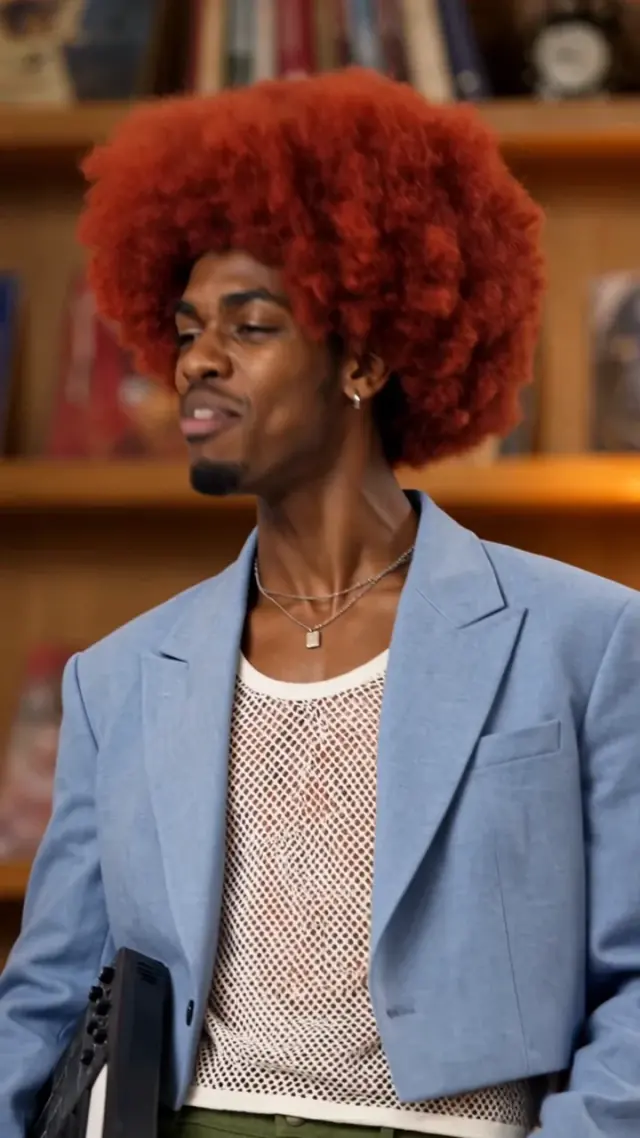
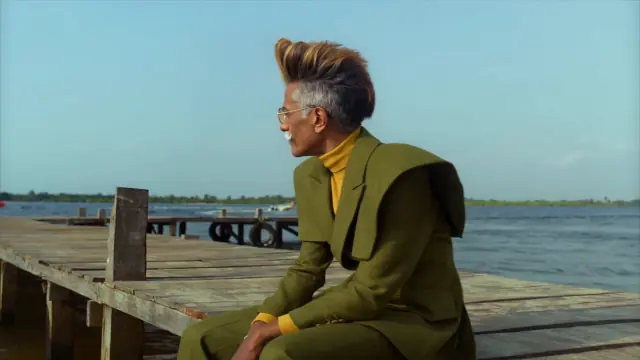
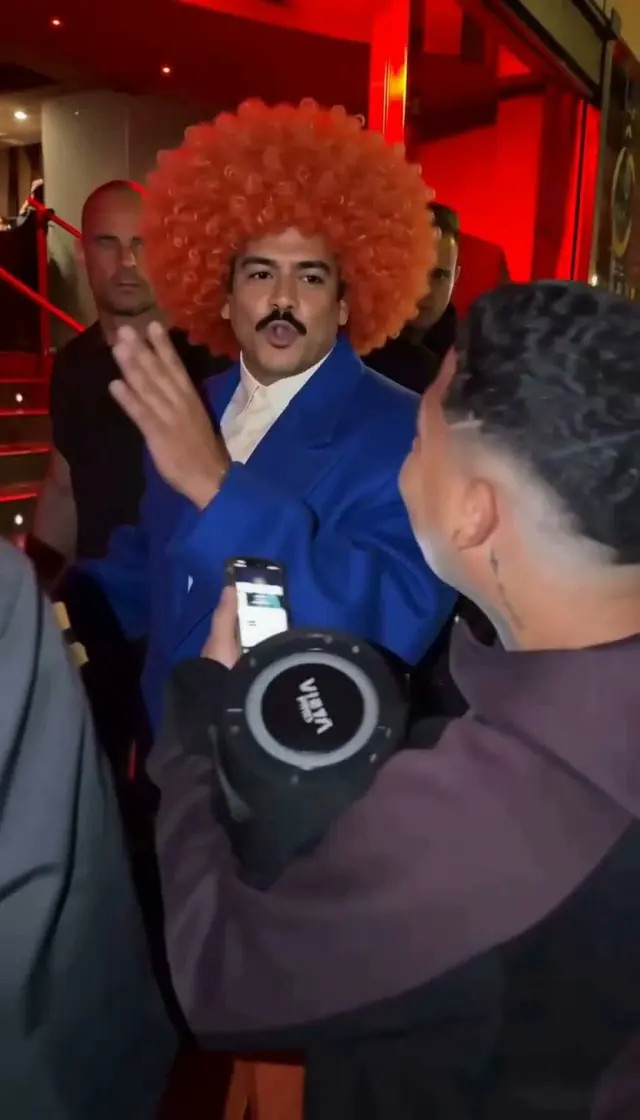
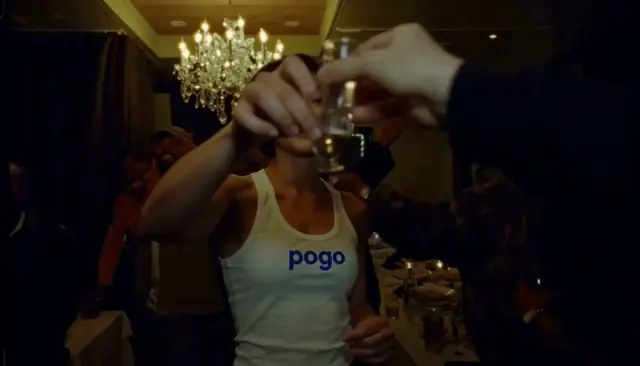
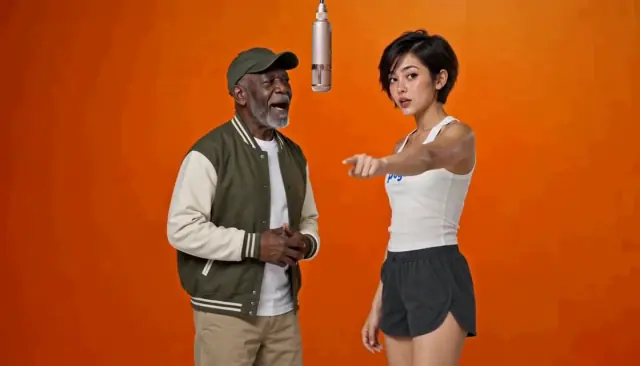
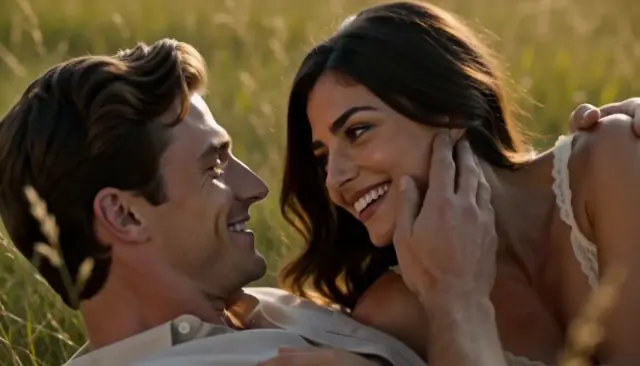
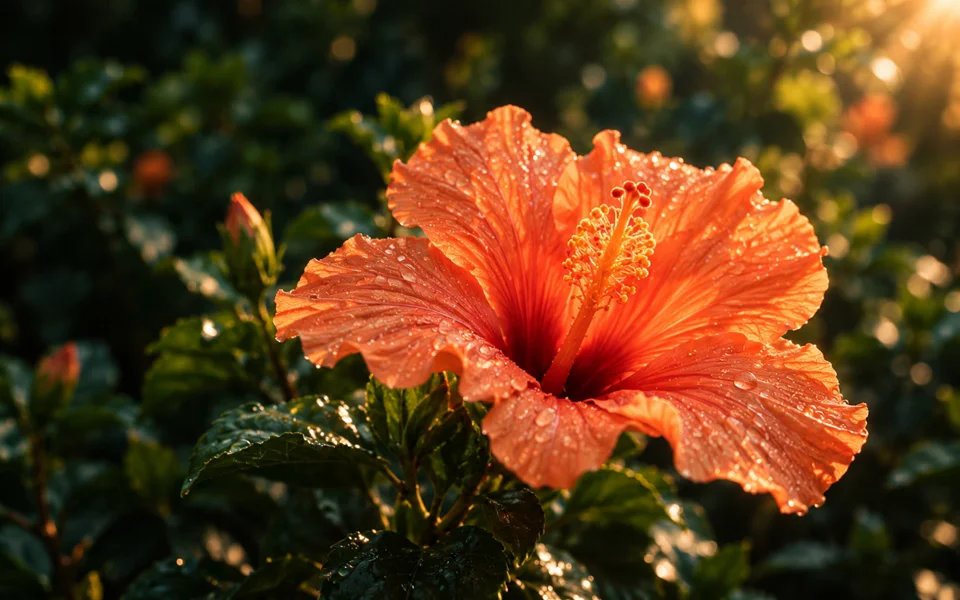
Animate a photo
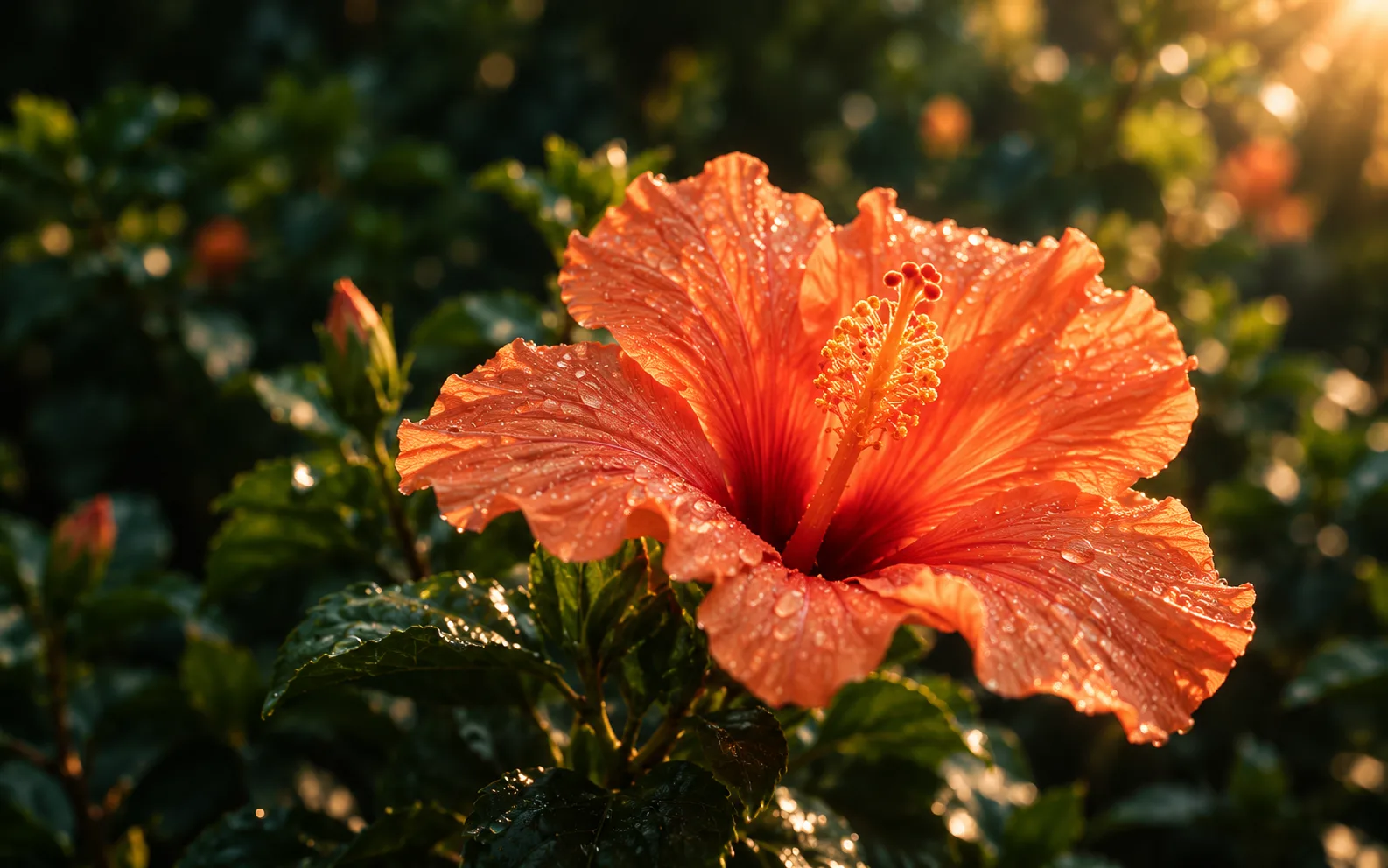
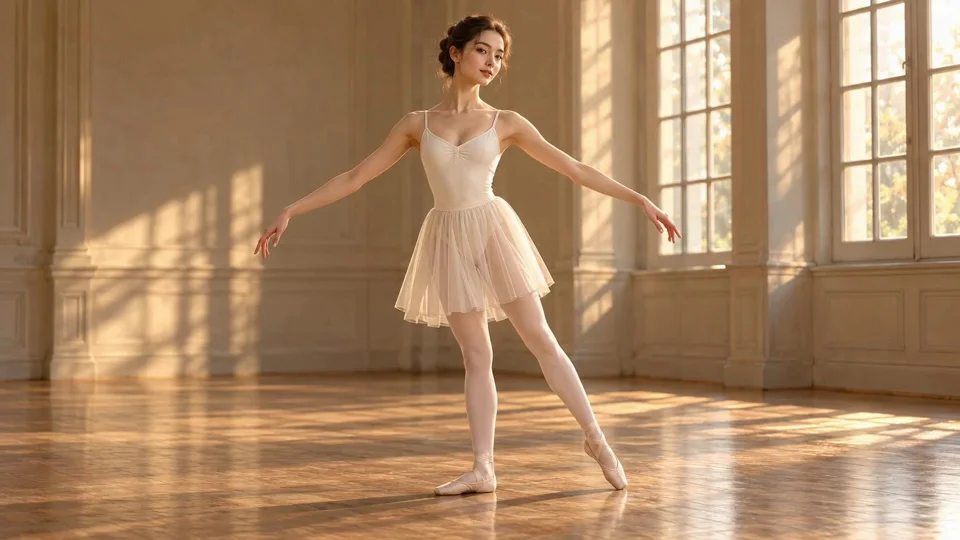
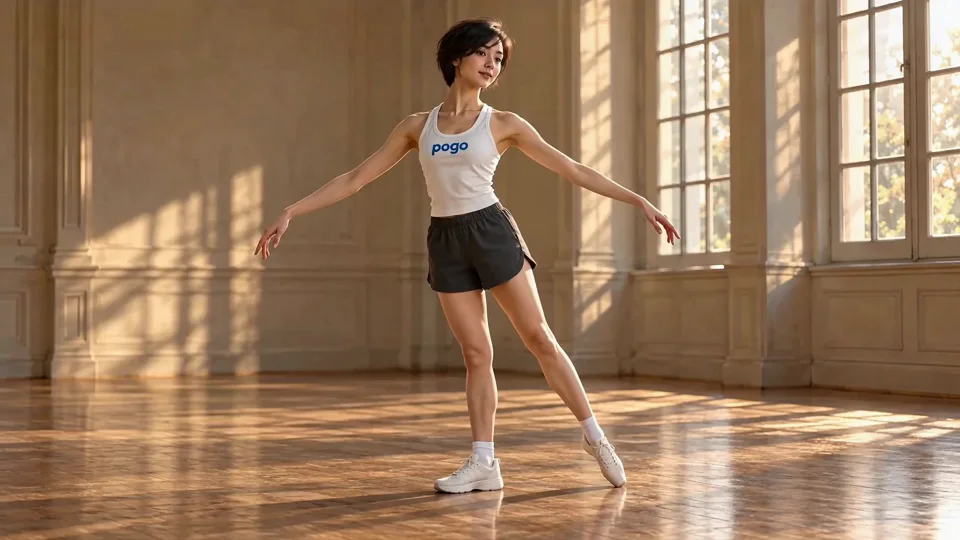
Replace people
Use my videoHow it works
What is image to video AI?
Image to video AI creates a moving clip from a still photograph. Your image supplies the subject and starting composition; a short prompt describes what should happen next. You might ask for a slow camera move around a product, a breeze through a landscape, or a small gesture in a portrait. The model generates new frames, so the result is an interpretation of the photo rather than a recording of something that actually happened. Faces, lettering, fine details, and movement may change. Start with one clear subject and a simple motion you can review.
Photo to video can help you explore a product ad, a social post, a pet clip, or a family-photo animation without filming a new scene. Choose an image you have permission to use, and check the result before sharing it. In Videopogo, the selected model determines the available length, frame shape, quality, and reference options. For a specific performance or scene, the AI video templates above offer a separate guided route with their own instructions.
How to turn a photo into a video
For image to video, choose Video at the top of this page. The creator keeps your photo, motion description, and settings together so you can review the request before starting a generation.
Upload a clear photo
Add your image through the reference picker. Choose a sharp photo with a readable subject and space around anything that should move. The picker shows supported file types and upload limits for your selection.
Describe one motion
Write a short prompt about the subject or camera: for example, a slow push toward a flower as its petals move gently. Begin with a small change rather than several simultaneous actions.
Choose the available settings
Select a model, then review the lengths, frame shapes, and quality options it supports. These options vary by model. If you change the model or references, check the settings again before continuing.
Check credits, then generate
Read the credit quote for your current choices and sign in when asked. Generation starts only after your explicit create action. Follow the task status, then preview and download the completed result from Assets.
A processing task is not a failed task. Check its status before submitting again, and inspect the finished video for unwanted changes before using it in a public or commercial project.
Image to video vs. Video Recast
Both modes can use photos, but they start from different material. Choose image to video when you want to invent movement for a still image. Choose Video Recast when you already have a clip and want the people in your photos to appear in it.
Image to video: animate a still image
Start with a photo and a motion prompt. The model creates movement around that image, which suits a product shot, landscape, portrait, or pet photo. You control the requested action through the prompt and the available generation settings. You do not need a source performance video for ordinary photo animation; review the output because new frames can change details.
Animate a photo
Video Recast: replace people in a clip
Start with an existing video and separate photos of the people you want to place in it. The source clip supplies the performance and camera movement, and Recast keeps its original sound. This is the route for recreating a scene with different people, rather than inventing a new camera move from one still. The dedicated Recast page explains the supported clip and photo requirements.
Open Video RecastReady-made templates use a preset scene and their own photo instructions. Their duration, sound, and purchase options belong to that template; do not assume that every image to video model or template has the same limits.
Choose your creation plan.
Choose a plan for your AI videos and images, or top up when you need to.
Starter
$9.90/ month
Monthly
700credits / month
- Issued monthly; unused monthly credits expire
- Auto-renews. Cancel anytime.
- Image-to-video, Video Recast, image creation and supported templates
- Video credits depend on the model, length and quality. Review your quote before generating.
Recommended
Creator
At the Starter credit rate$25.46
$24.90/ month
Monthly
Save $0.56 (2%)
1,800credits / month
- Issued monthly; unused monthly credits expire
- Auto-renews. Cancel anytime.
- Image-to-video, Video Recast, image creation and supported templates
- Video credits depend on the model, length and quality. Review your quote before generating.
Studio
At the Starter credit rate$67.89
$59.90/ month
Monthly
Save $7.99 (12%)
4,800credits / month
- Issued monthly; unused monthly credits expire
- Auto-renews. Cancel anytime.
- Image-to-video, Video Recast, image creation and supported templates
- Video credits depend on the model, length and quality. Review your quote before generating.
Frequently asked questions
Add a photo in Image to video, describe one movement, then choose the available settings.
- Review the credit cost and select Generate.
- Check the result before sharing.
Use Image to video for a new clip from a still photo.
- Use Video Recast to place your characters into an existing performance.
- Choose a template for a preset scene; the workbench also creates and edits images.
Follow the selected template’s input slots.
- Hotel Lobby uses two separate character photos; Tiny Desk AI uses five ordered portraits.
- Template pages provide scene directions, so you may not need to write a prompt.
Choose a sharp, well-lit photo with a clear subject and visible face.
- Start with a small movement.
- AI can change faces, hands, clothing or text, so a sample does not guarantee an identical result.
Audio depends on the model or template.
- Hotel Lobby Normal uses the template soundtrack; other music styles generate new audio.
- For other templates, read the audio notes and preview the result.
The selected model controls the available duration, resolution and aspect ratio.
- Choose from the settings shown; templates can have fixed specifications.
- Changing these settings can change the credit cost.
A subscription is optional: one-time credit packs are also available.
- The workbench shows the credit cost before generation, based on the model, length, quality and references.
- Check each template’s price and purchase options on its page.
Time varies with the model, clip length and queue.
- Check the task status, then open completed work in Assets or on the template page.
- Download videos you want to keep before access expires.
Confirmed failures restore charged credits or template uses; credits keep their original expiry.
- Check a processing or uncertain task before retrying.
- If saving is pending, retry saving the existing result rather than starting another generation.
Your uploads and results are not automatically published.
- Signed-in assets are stored in your private library; selected files are sent to the generation provider when you start a request.
- See the Privacy Policy for storage and access details.
Use materials you have the right to process and photos of consenting adults.
- Check the Terms and any rights needed for your project before sharing or selling a result.
- Generated output is not guaranteed to be exclusive or free of third-party rights.
Image to video AI generates a moving clip from a still image and a motion description.
- It can invent or change details rather than reproduce a real recording.
- Use it to explore a product shot, portrait movement or another short visual idea.
Still have questions? Email us at support@videopogo.com